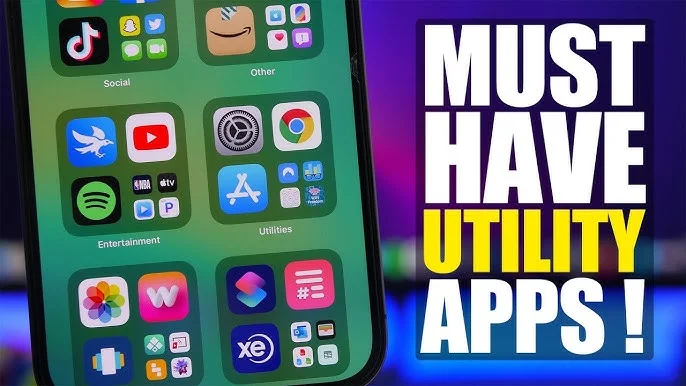
Most people fill their phones with social media apps, games, and streaming platforms — but the apps that actually make daily life easier are usually the quiet, unglamorous ones: a good file manager, a reliable password manager, a scanner app that saves a trip to the printer shop. These are utility apps, and while they rarely get the spotlight, they’re often the difference between a phone that just works and one that constantly frustrates you.
This guide covers the must-have utility apps every smartphone user should consider, organized by the everyday problem each one solves — so you can pick exactly what you need instead of installing everything at once.
Why Utility Apps Deserve a Spot on Your Home Screen
Utility apps don’t entertain you, but they solve small, recurring problems that add up over time: low storage, disorganized files, weak passwords, poor battery life, and the constant hassle of scanning or converting documents on the go.
The right set of utility apps can:
- Free up storage without deleting things you actually need
- Keep your accounts more secure with minimal effort
- Turn your phone into a scanner, converter, and backup device
- Save time on tasks that would otherwise require a computer
Here are the categories and apps worth having on every smartphone, regardless of brand or operating system.
1. File Manager Apps
A good file manager helps you find, organize, move, and delete files without digging through confusing folder structures.
What to look for:
- Easy access to downloads, media, and documents in one place
- Built-in storage analysis to show what’s taking up space
- Support for cloud storage integration (Google Drive, Dropbox, OneDrive)
Most Android phones come with Google Files, which also includes a built-in storage cleanup feature and safe file-sharing options for transferring files without internet.
Why it matters: Without a file manager, most people lose track of duplicate photos, forgotten downloads, and old app data that quietly eats up storage.
2. Password Manager Apps
Reusing the same password across multiple accounts is one of the most common security risks smartphone users take without realizing it.
What to look for:
- Strong encryption for stored passwords
- Autofill support across apps and browsers
- A password generator for creating strong, unique passwords
- Cross-device sync if you use multiple devices
Popular options include Bitwarden, 1Password, and Google Password Manager, all of which let you store and autofill credentials securely instead of relying on memory or unsafe notes apps.
Why it matters: A password manager is one of the simplest upgrades to your digital security, reducing the risk of one leaked password compromising multiple accounts.
3. Document Scanner Apps
Scanning documents used to require a trip to a printer shop. Now, your phone’s camera can do the job in seconds.
What to look for:
- Automatic edge detection and cropping
- PDF export with clear, readable quality
- OCR (text recognition) so scanned documents become searchable and editable
Google Drive’s built-in scanner, Adobe Scan, and Microsoft Lens are widely used for turning receipts, forms, notes, and ID documents into clean PDF files instantly.
Why it matters: This single feature can eliminate the need for a physical scanner altogether for most personal and small business needs.
4. VPN Apps
A VPN (Virtual Private Network) encrypts your internet connection, which matters most when using public Wi-Fi at cafes, airports, or hotels.
What to look for:
- A clear no-logging privacy policy
- Reliable connection speeds
- Servers in multiple countries if you need location flexibility
- Transparent pricing without hidden data limits
Why it matters: Public Wi-Fi networks are common targets for data interception. A VPN adds a meaningful layer of protection when you’re connected to networks you don’t fully trust.
5. Cloud Backup Apps
Losing photos, contacts, or documents to a broken or lost phone is one of the most painful smartphone experiences — and one of the most preventable.
What to look for:
- Automatic, scheduled backups rather than manual-only options
- Enough free storage for your needs, with reasonable paid tiers
- Easy restoration when switching to a new device
Google Photos, Google One, and iCloud (for iPhone users) handle this automatically once set up, quietly backing up photos and files in the background.
Why it matters: A backup app turns a potential disaster — a lost or damaged phone — into a minor inconvenience, since everything can be restored on a new device.
6. Note-Taking Apps
A reliable note-taking app replaces scattered sticky notes, random screenshots, and half-finished thoughts saved nowhere in particular.
What to look for:
- Fast, distraction-free note creation
- Support for checklists, voice notes, and images
- Sync across devices so notes are accessible everywhere
Google Keep, Notion, and Microsoft OneNote are common choices, each suited to different needs — Google Keep for quick notes, Notion for more structured organization, and OneNote for longer-form note-taking.
Why it matters: A dedicated notes app keeps ideas, lists, and reminders organized in one searchable place instead of scattered across texts and screenshots.
7. QR Code and Barcode Scanner Apps
QR codes have become a daily part of life — restaurant menus, payment systems, event check-ins, and product information.
What to look for:
- Fast scanning without unnecessary ads or pop-ups
- No requirement to create an account just to scan a code
- Support for generating your own QR codes, not just scanning them
Most modern phones now include a built-in scanner directly in the camera app, but dedicated apps remain useful for generating custom QR codes for business cards, Wi-Fi sharing, or payment links.
Why it matters: A quick, ad-free scanner saves time in situations where speed matters, like restaurant ordering or event check-ins.
8. Storage Cleaner Apps
Over time, phones accumulate cache files, duplicate photos, and unused app data that silently consume storage.
What to look for:
- Clear breakdown of what’s taking up space
- Safe cleanup suggestions rather than aggressive automatic deletion
- No unnecessary background processes that drain battery
Why it matters: Regular storage cleanup keeps your phone running smoothly and prevents the “storage full” notification from appearing at the worst possible moment.
9. Offline Maps Apps
Not every location has reliable signal, and data roaming charges while traveling can be expensive.
What to look for:
- Ability to download maps for offline use before traveling
- Turn-by-turn navigation that works without an active connection
- Regularly updated map data
Google Maps and Maps.me both support offline map downloads, which is especially useful for travel, hiking, or areas with poor network coverage.
Why it matters: Offline maps prevent you from getting stranded without navigation in areas with weak or no signal.
10. Battery and Performance Monitor Apps
Understanding what’s actually draining your battery helps you fix the problem instead of guessing.
What to look for:
- Clear breakdown of battery usage by app
- Suggestions based on actual usage patterns, not generic tips
- Minimal background resource usage from the monitoring app itself
Most modern phones include a built-in battery usage breakdown in system settings, which is often sufficient without needing a separate third-party app.
Why it matters: Identifying the exact app or setting draining your battery is far more useful than blanket advice like “close all your apps.”
How to Choose the Right Utility Apps Without Overloading Your Phone
Installing every app in every category isn’t the goal — the goal is filling actual gaps in your current setup. A simple approach:
- Identify your biggest recurring annoyance — low storage, forgotten passwords, messy files, or poor battery life.
- Install one app per category, rather than multiple overlapping apps doing the same job.
- Check permissions before installing. A flashlight app asking for contact access, for example, is a red flag.
- Prefer apps with transparent privacy policies, especially for password managers, VPNs, and backup tools.
- Uninstall apps you don’t actually use after a month — utility apps should earn their spot, just like any other app.
Common Mistakes to Avoid
- Installing multiple apps for the same function, which wastes storage and creates confusing overlaps.
- Ignoring app permissions, especially for apps that request more access than their function requires.
- Choosing unknown apps with excessive ads over trusted, well-reviewed alternatives, especially for security-related tools like password managers and VPNs.
- Relying only on manual backups, which are easy to forget — automatic backup settings are far more reliable.
Frequently Asked Questions
Do I really need a separate password manager if my phone already saves passwords? Built-in password saving is a good start, but dedicated password managers usually offer stronger encryption, cross-platform support, and features like breach alerts and secure password generation.
Are free utility apps safe to use? Many are, but always check permissions and reviews first. Be cautious of free apps that request excessive permissions unrelated to their core function, especially for VPNs and cleaner apps.
How many utility apps should I have installed? There’s no fixed number — the goal is covering your actual needs (files, passwords, backup, scanning) without duplicating the same function across multiple apps.
Do I still need a VPN if I mostly use home Wi-Fi? A VPN matters most on public or unsecured networks. If you rarely use public Wi-Fi, it’s less critical, but still useful for general privacy.
Final Thoughts
The most useful smartphone apps aren’t always the flashiest ones — they’re the quiet utility apps that solve small, recurring problems: a password manager that keeps your accounts secure, a scanner that replaces a trip to the printer shop, a backup app that saves you from losing your photos forever. Instead of installing everything at once, start with the categories that solve your biggest daily annoyance, and build a lean, useful set of utility apps from there.